 25 Questions for a Travel Agency Customer Satisfaction Survey
Timers and Scheduled Access
Updated
On this page
These settings control time in a survey: how long a respondent has for the whole survey or for one question, how long they must stay on a question before moving on, and on which days and hours the survey accepts responses. All of them are on the Settings tab of the survey.
Paid feature. Survey timer and Question timer are available on the Standard plan and higher, and Minimum view time on the Premium plan and higher. Scheduled access and the other time settings work on all plans. Compare plans
Survey timer
The survey timer limits the time for the whole survey.
- Open the survey and go to Settings.
- In Identification and access, turn on Survey timer (1).
- Enter the time in minutes and seconds (2). The default is 1 minute.
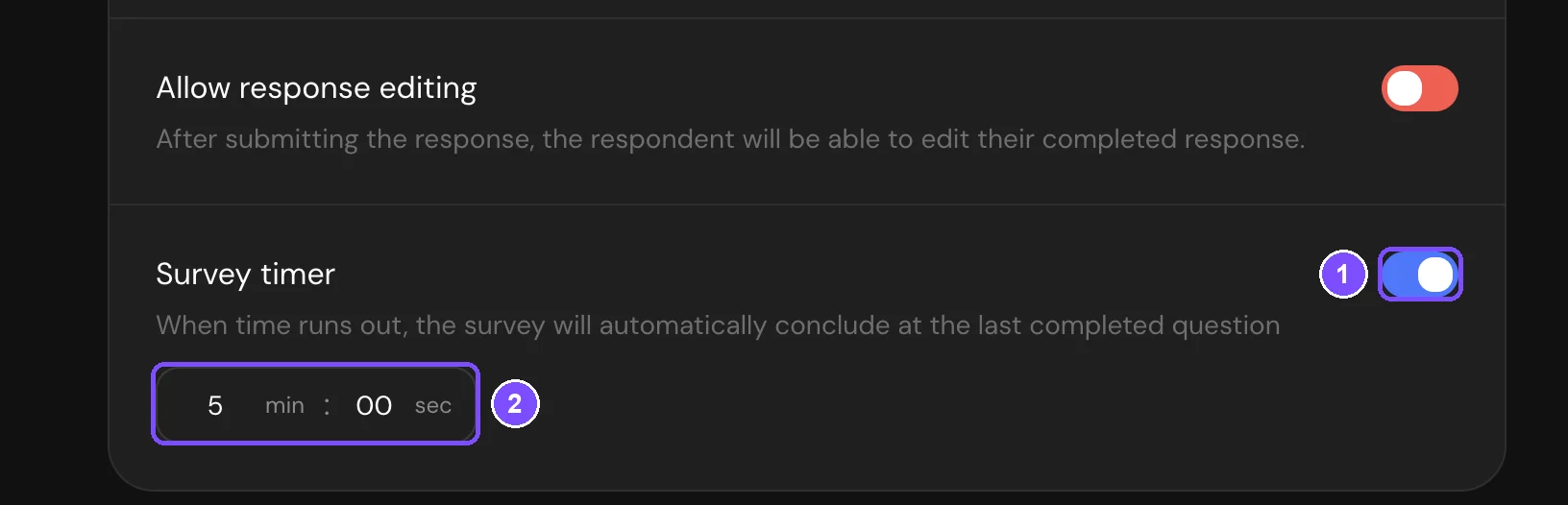
Respondents see a countdown on the survey page. It starts when the respondent opens the survey. If the survey begins with a Welcome Screen, the countdown starts when they click the button on that screen.
When the time runs out, the survey ends and the answers given so far are saved as a response. If Autosave progress is on, reloading the page doesn't restart the countdown.
Question timer and related options
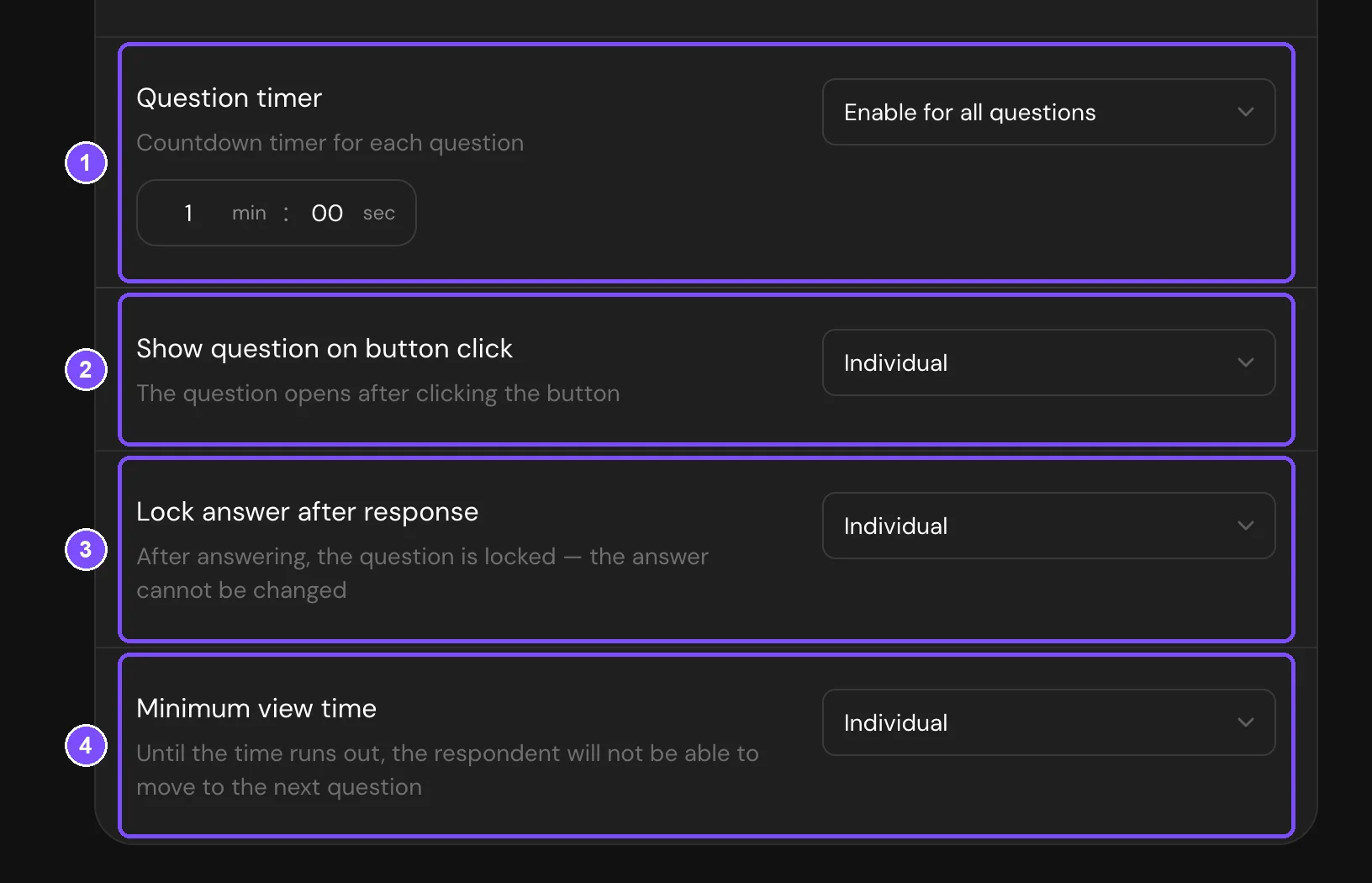
Three options in Filling behavior work per question:
- Question timer (1): a countdown for each question.
- Show question on button click (2): the question stays hidden until the respondent clicks Show a question. If the question has a timer, the countdown starts with that click, so everyone gets the same time to read and answer.
- Lock answer after response (3): the respondent confirms the answer with Confirm the response. After that, the answer can't be changed.
Each option has three modes:
- Individual: you turn the option on for specific questions in the question settings.
- Enable for all questions: the option works on every question. For Question timer, set one time for all questions in the field that appears (1 minute by default).
- Disable for all questions: the option is off everywhere, whatever is set in the questions.
Setting a timer for one question
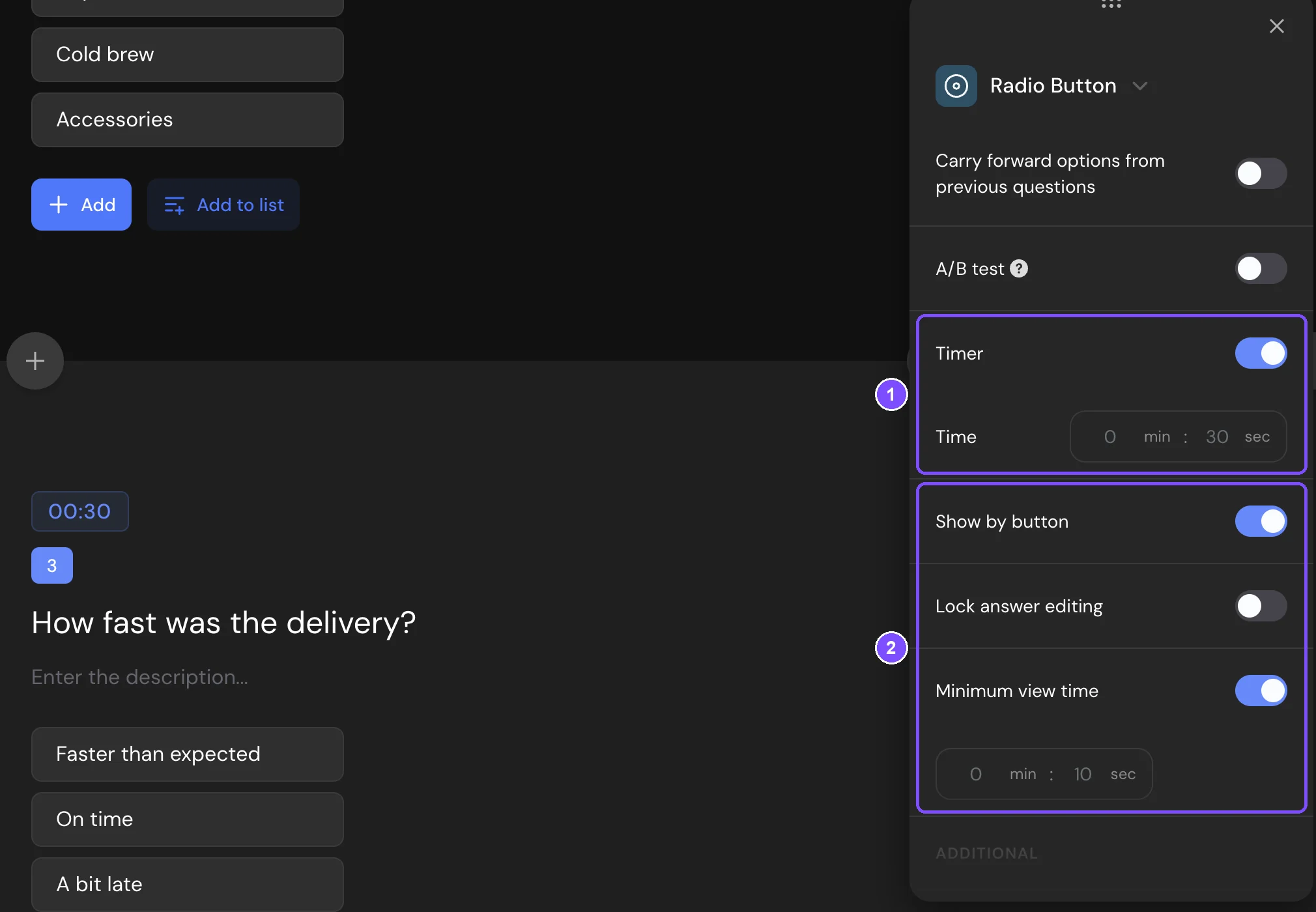
- Make sure Question timer is set to Individual in Settings → Filling behavior.
- In the editor, click the gear icon (Settings) on the question panel.
- Turn on Timer and set the Time (1).
- If needed, turn on Show by button, Lock answer editing or Minimum view time for this question (2).
In the editor, a question with a timer shows its time above the question number, and a question with a minimum view time shows a line like "Minimum view time — 10 seconds" under the answer options.
If an option is set to Enable for all questions or Disable for all questions in the survey settings, its switch in the question is locked, and the tooltip says so.
When the question time runs out
The question is locked: the respondent can't answer it or change the answer and can only move on. If they didn't answer, the question is saved as skipped, and the response in Results shows "Did not answer in time — time ran out".
Minimum view time
Minimum view time keeps the respondent on a question for a set time, for example, to make sure they watch a video or read the terms. Until the time passes, the button to the next question doesn't work and shows a countdown.
Only the time when the question is on screen counts. If the respondent switches to another tab or app, the countdown pauses.
Set it the same way as the question timer: in Settings → Filling behavior → Minimum view time (4 on the Filling behavior screenshot) for all questions (10 seconds by default), or in the settings of one question.
Scheduled access
Scheduled access opens and closes the survey automatically on selected days and hours, for example, only on weekdays from 9:00 to 18:00.
- Go to Settings → Publication and availability.
- Turn on Scheduled access (1).
- Under Days of the week, select the days when the survey is open (2).
- Set the hours in From and To (3).
- Check the Time zone (4). By default, it's the time zone of your account.
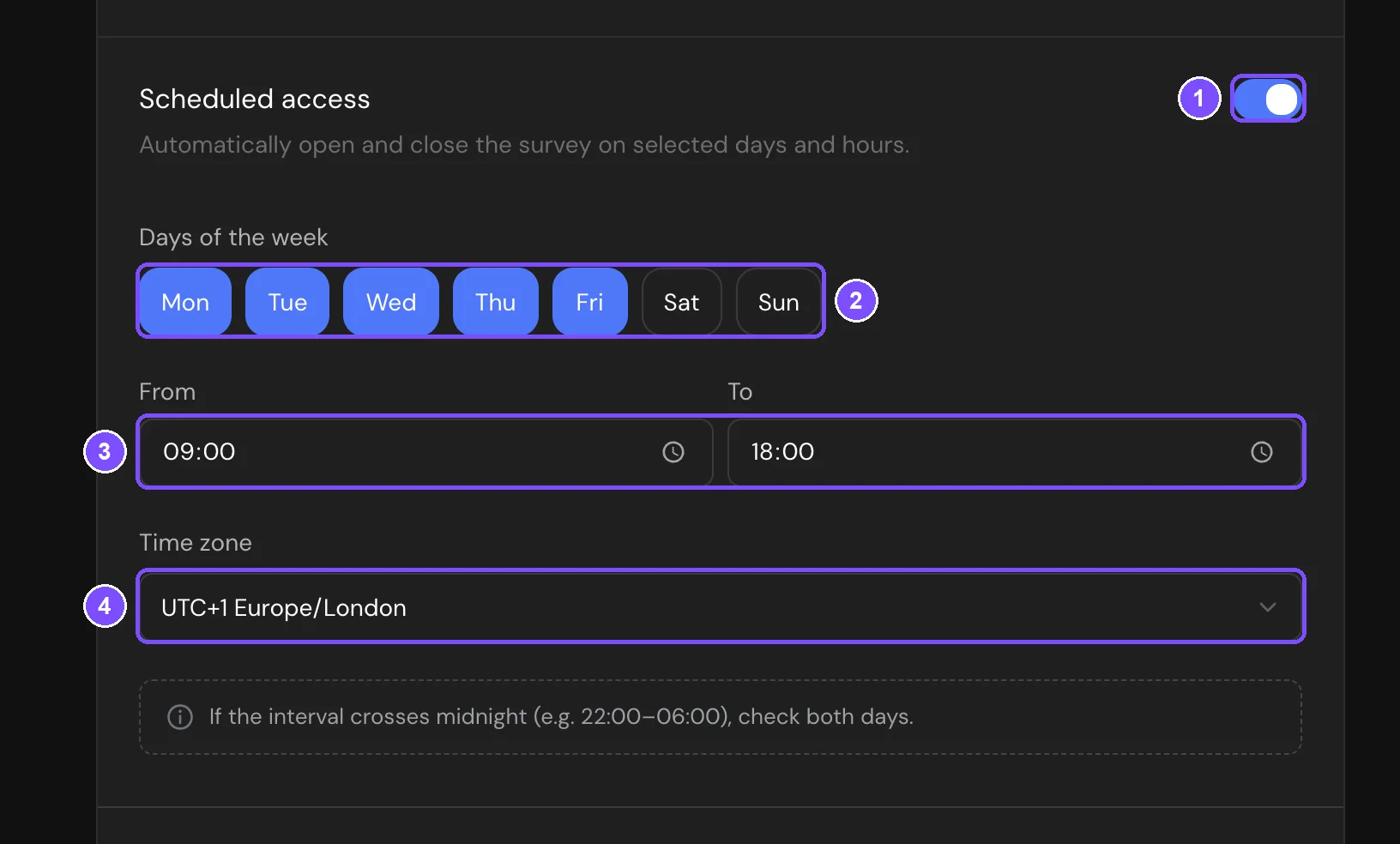
Outside these hours, people who open the survey see a page saying that the survey is temporarily closed, with the days and hours when it's open.
If no days are selected, the From or To field is empty, or both times are the same, the schedule doesn't limit access.
Hours that cross midnight
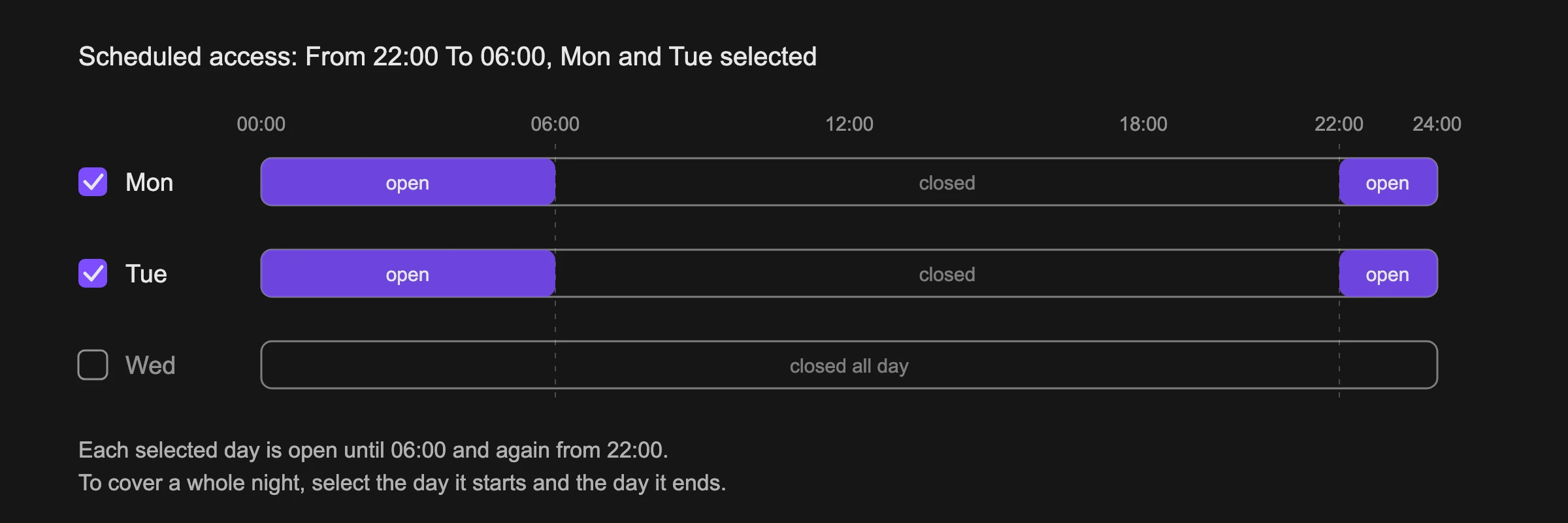
If the interval crosses midnight, for example 22:00–06:00, each selected day is open from 00:00 to 06:00 and from 22:00 to 24:00. To keep the survey open through the night from Monday to Tuesday, select both Monday and Tuesday.
Autosave and retaking the survey
- Autosave progress in Filling behavior is on by default. A respondent can close the survey and come back later to the same question. Progress is saved in the browser, so it works when they return on the same device and in the same browser.
- Allow retaking the survey appears when autosave is on and is off by default. When it's on, a respondent who returns to an unfinished survey sees "Continue where you left off?" with the buttons Continue and Start over.
Limits
- Survey timer and Allow response editing can't be used at the same time. See Survey Access and Protection.
- The Welcome Screen, Thank You Screen and Disqualification screen have no question timer, button or minimum view time. The Booking question has no such settings of its own either. In a Question Group, the timer, the button and the minimum view time apply to the whole group, and Lock answer after response applies to each question in it.
- The minimum view time of a question must be shorter than its timer. The editor won't let you set it longer.
- The schedule is checked when someone opens the survey.
- Scheduled access repeats every week. To close the survey for good on a certain date or after a number of responses, use Deadline or Limit on number of responses. See Response Limit and Survey Deadline.