 Google Forms Limits: Responses, File Uploads, Timers and Logic, With Workarounds

Audio and Video Responses in Results: Recordings and Transcripts
Updated
-
Free: not included -
Basic: not included -
Standard: not included - Premium
- Enterprise
On this page
When a respondent answers an audio or video question, the results keep the recording and an automatic transcript. You can play each recording, read and search the text, see common themes in the report and share recordings with a link. To add the question to a survey, see Audio and Video Responses.
Audio and video questions in the report
Open Results and go to Reports. The card of an audio or video question has three views:
- Themes: a short summary and the themes AI found in the answers, grouped into Complaints, Praise and Neutral. Click a theme to see its quotes. A quote plays the recording from the moment it was said, and Whole answer opens the response. Listen to all (Watch all for video) plays the quotes of the theme one after another.
- Answers: each answer with a player, its themes and the start of the transcript. Click Show more to load the next answers.
- Table: the same answers in columns: Recording with its length, Date, Themes (once AI has found themes) and Transcript. Click the play icon to play a recording under its row.
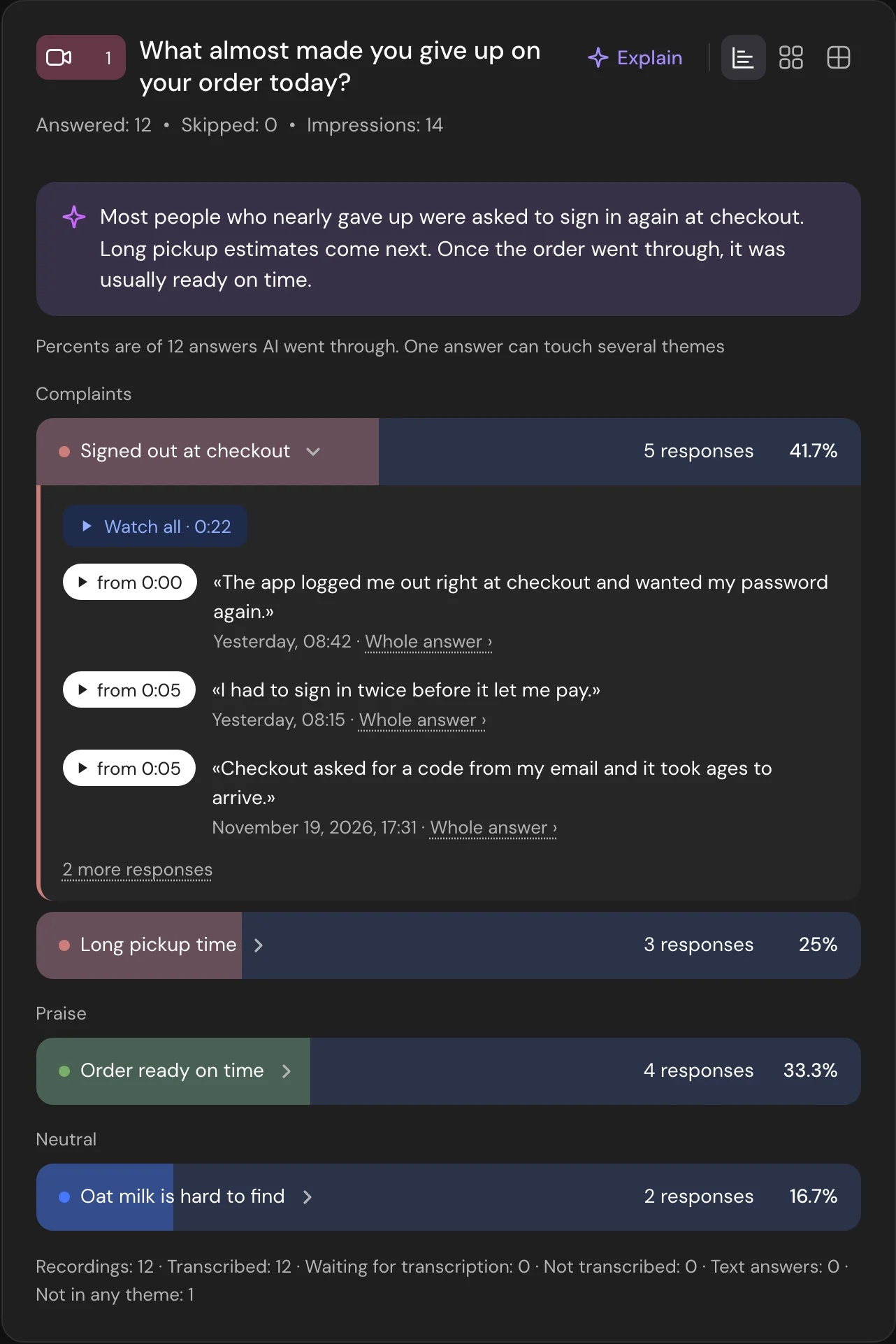
Under the views, a line counts Recordings, Transcribed, Waiting for transcription, Not transcribed, Text answers and Not in any theme.
Themes are built from transcripts, so they need at least 3 transcribed answers. Until then, the Themes view shows the answers. AI reads up to 150 of the newest answers that match the report filters and finds up to 8 themes.
Recordings and transcripts in responses
On the Responses tab, the answer to an audio or video question shows a player with the transcript under it. The transcript is split into lines with time marks: click a line to play the recording from that moment. If the respondent typed an answer instead, the card shows it as Text response.
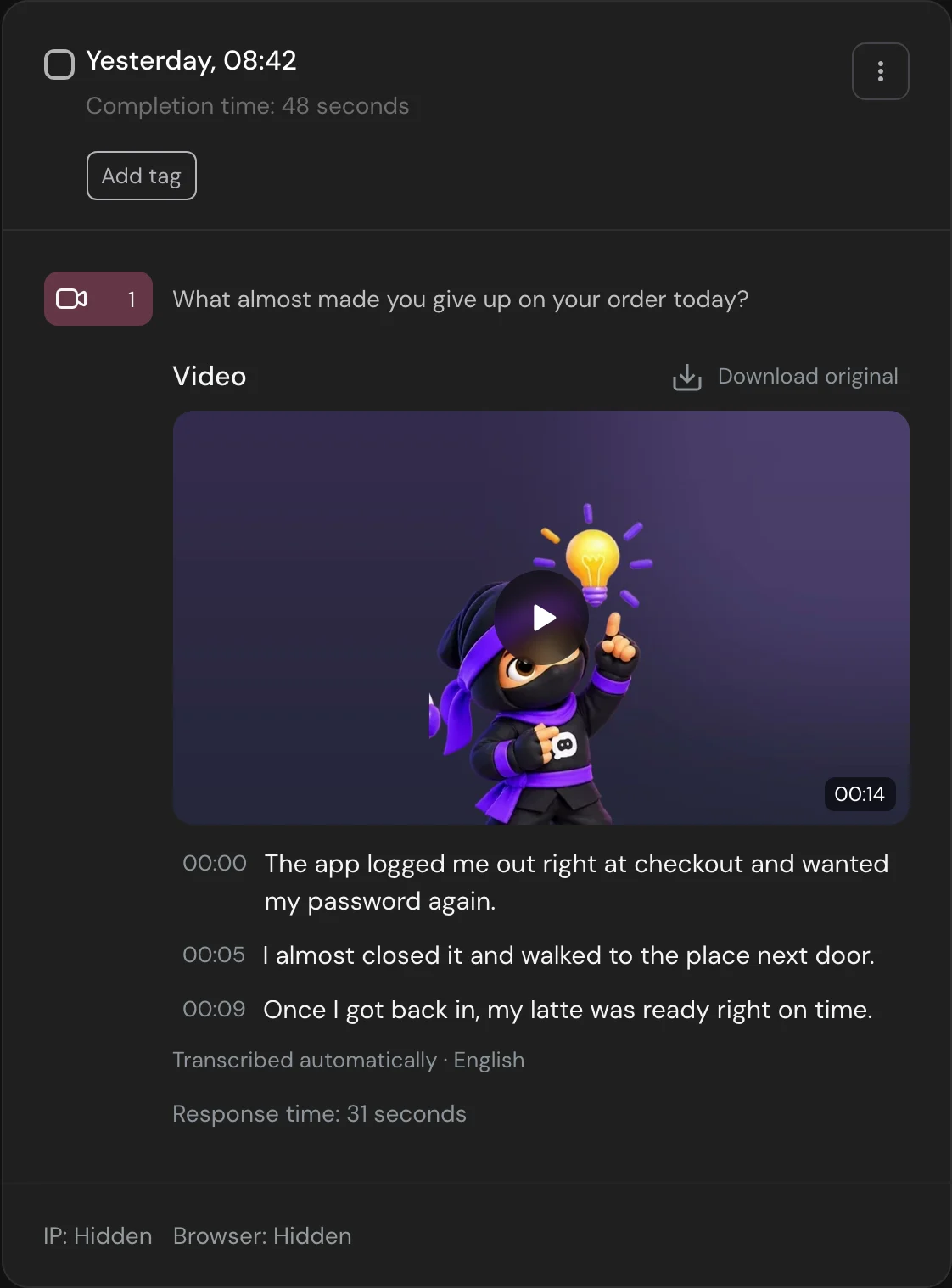
Download original saves the file exactly as the respondent recorded or uploaded it.
Transcription statuses
Transcription works for answers in English. It starts after the respondent submits the survey, and the text is usually ready a few minutes later. Until then, or if there is no text, the card shows a status:
| Status | What it means |
|---|---|
| Waiting for transcription, Being transcribed | The recording is in line or being processed. |
| Transcription after the survey is submitted | The response is incomplete. |
| Transcription paused: out of minutes | There are not enough minutes left for this recording. |
| Transcription paused: not in the plan | The workspace plan no longer includes audio and video responses. |
| No speech detected | The recording is silent. The minutes are used. |
| Transcription failed | Click Retry to try again. The new attempt uses minutes. |
| Transcription not supported | The language, format or size of the recording can't be transcribed. |
| Transcription disabled by the author | Transcription is off in the question settings. |
Paused transcripts don't continue on their own, even after you buy minutes or a new month starts. Click Resume transcription in each card.
Finding answers by recording or transcript
Search responses also looks in transcripts and in text answers to audio and video questions. The found words are highlighted in the card.
To narrow down the list, click Filter and open Audio and video responses. The group appears when the survey has an audio or video question.
- Choose All, Recording or Text to keep answers of one form.
- In Transcription status, choose one or more: Transcribed, Being transcribed, Paused, Transcription failed, No speech detected, Not transcribed.
Click Apply. This filter is available only on the Responses tab.
Downloading answers
In CSV and XLSX files, the column of an audio or video question holds the transcript or the text answer. Next to it are the columns form, duration, sec, transcription status and recording ID. Files don't contain links to recordings. See Viewing and Downloading Survey Responses.
Sharing recordings and transcripts
Shared links don't show recordings or transcripts until you allow it. Click the Share icon on the Responses or Reports tab and, under Audio and video responses, turn on:
- Recordings: guests can listen to, watch and download recordings. Only for responses.
- Text answers and transcripts: guests see text answers and completed transcripts.
With both switches off, guests see only whether the respondent answered with a recording or text. The public report never plays recordings. The switches apply to the link shown in the window. Turning one off closes access right away. See How to Share Results.
Transcription minutes
Transcripts use the workspace's transcription minutes:
- Premium and Enterprise: 100 minutes per month. Unused minutes don't carry over.
- Trial: 20 minutes for the whole trial.
- Packs: 1,000 minutes for $20, 5,000 for $80, 20,000 for $258. A pack is valid for 12 months from payment.
Plan minutes are used first, then packs, starting with the one that expires soonest. Each recording uses its length in seconds. When minutes run out, new transcripts pause. Nothing is charged automatically.
To see what's left, click your profile icon in the top right corner and choose Billing. Under Plan limits, the Transcription minutes row shows how many plan minutes are used, for example "35 / 100 min", the day they renew and the minutes left in packs. To buy a pack, click Buy more minutes in this row, choose the pack in Minutes pack and click Go to payment. Packs are paid by card. Only members who can pay for the workspace see the button.
Packs stay with the workspace when the plan changes, but they are used only while the plan includes audio and video responses. See Plans and Limits.
Limits
- If the plan no longer includes audio and video responses, existing recordings and transcripts stay available. New transcripts pause.
- Transcripts, and with them themes and search by transcript, work for answers in English. Recordings in other languages are saved, and you can play and download them, but they don't get a reliable transcript.
- Recordings count toward the workspace storage, like uploaded files.
- Deleting a response after its recording was transcribed doesn't return the minutes.
- Recording length, file size and the transcription language are covered in Audio and Video Responses.