 Google Forms Limits: Responses, File Uploads, Timers and Logic, With Workarounds

Multilingual Surveys
Updated
On this page
Survey languages let one survey run in several languages. You translate the questions, screens and buttons by hand or with AI, respondents take the survey in their own language, and all responses are collected together in the same survey.
The feature is also available during the trial. On the Free and Basic plans, the Survey languages row has a dollar icon ($) and opens an offer to upgrade.
Adding a language
- Open the survey and go to the Settings tab.
- In Interface, click Add a language in the Survey languages row (1). The Survey languages page opens with the list of languages.
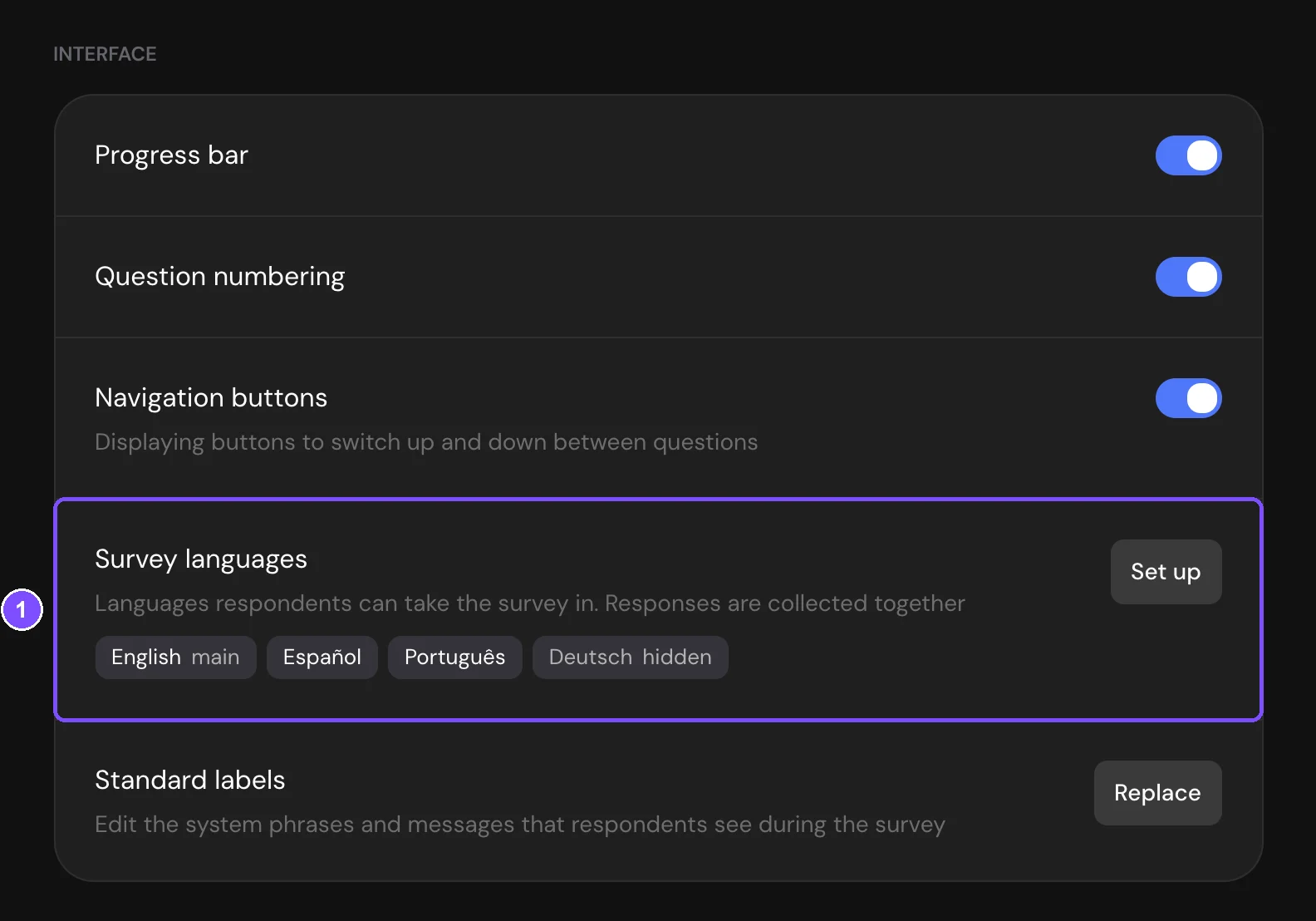
- Check the main language in the top row. It's the language the survey is written in: English, Español or Português. Change it here if needed.
- Pick a language from the list. Type in Search to find it by its own name or by its name in your interface language.
The language appears below the main language with the Hidden status. Respondents don't see it until you translate it, show it and publish the survey.
To add more languages, click Add a language on the same page. When the survey has extra languages, the Survey languages row in Settings lists them and its button is called Set up.
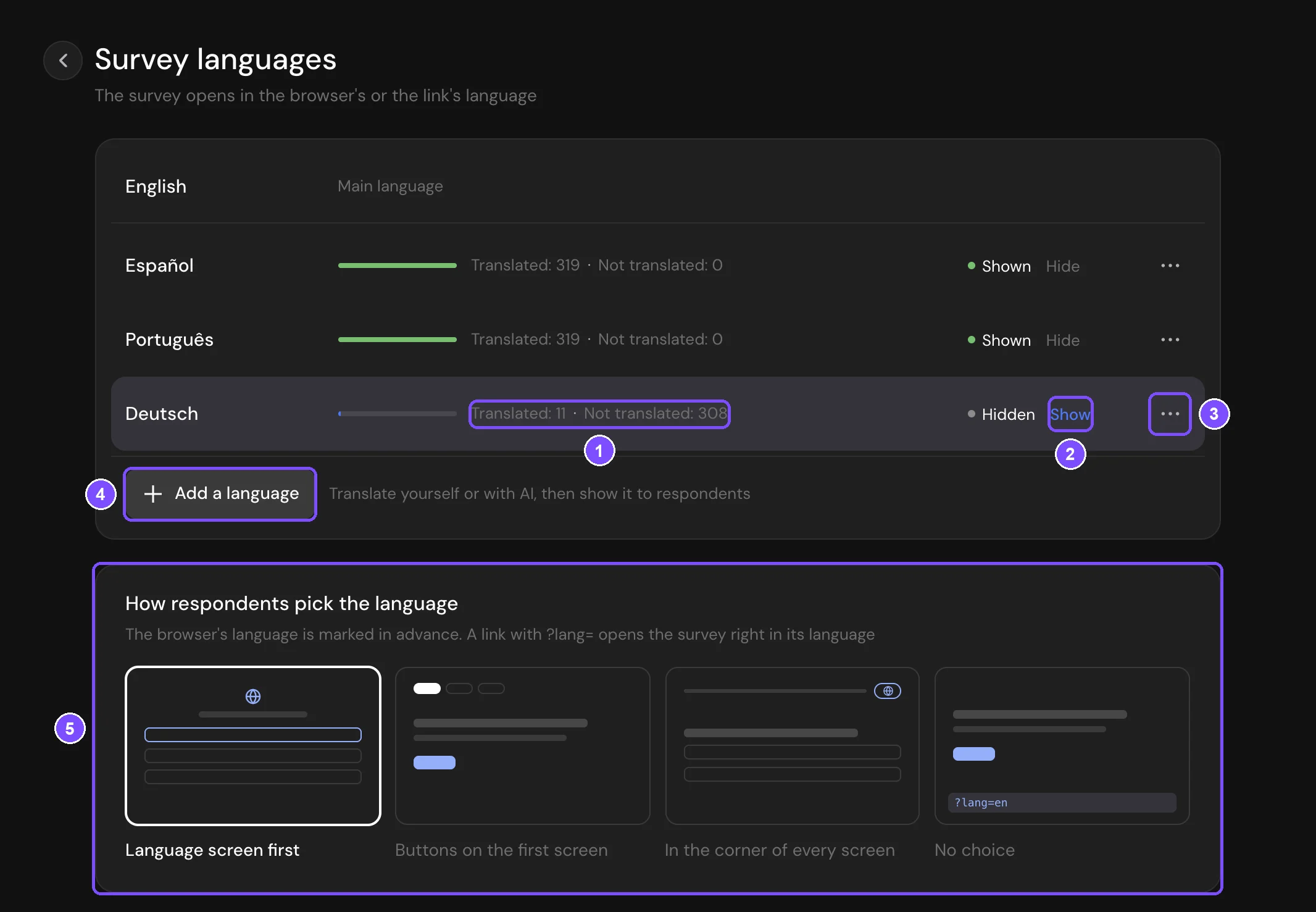
On the page, each language row shows the translation progress (1) and the status with Show or Hide (2). The three dots (3) open the language actions. Below the list are Add a language (4) and the How respondents pick the language card (5).
Note. The main language can be changed only while the survey has no other languages. To change it later, remove the extra languages first. Removing a language deletes its translation.
Translating the survey
Click a language in the list. The translation panel opens below it, for example Translation: Deutsch.
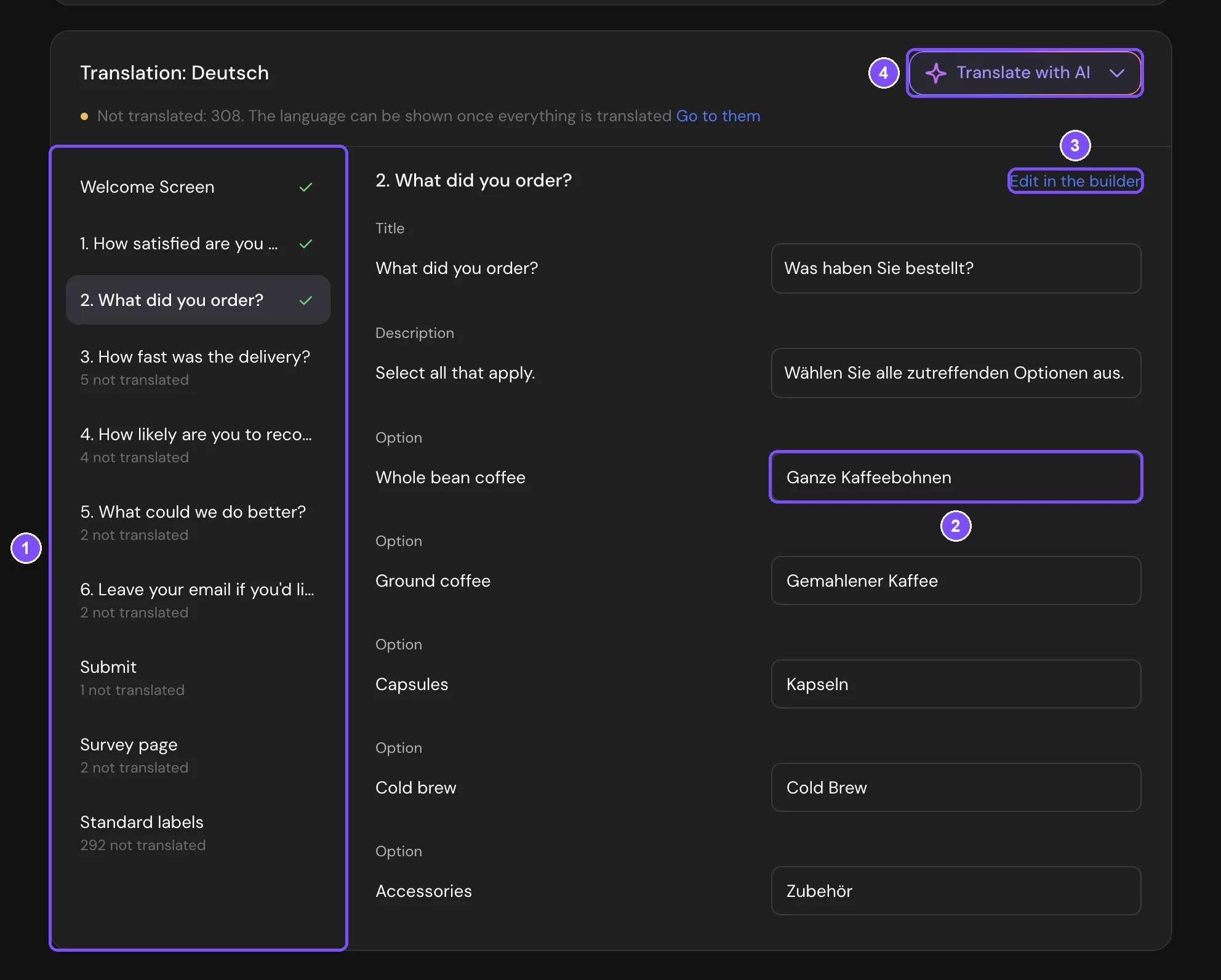
- On the left is the list of survey parts: the Welcome Screen, each question, the submit button, the Thank You Screens, Survey page and Standard labels. A dot marks a part with texts left to translate, a check mark a finished part (1).
- On the right are the texts of the open part: the original, and a field for its translation (2). Everything you type is saved automatically.
- To change the original text, click Edit in the builder (3). The question opens in Builder.
When you change an original that was already translated, the field says The original was changed — check the translation. Fix the translation, or click Translation is correct if it still fits.
Each language row shows the progress: Translated, Not translated and To check.
Translating with AI
Click Translate with AI at the top of the translation panel (4 in the screenshot above) and choose What to translate:
| Option | What it translates |
|---|---|
| Everything not translated | All empty texts in the survey |
| Only this part | Empty texts in the open part |
| Where the original changed | Texts whose original changed after translation. Shown only when there are such texts |
| Translate everything anew | All texts again. Your own edits are replaced too, so SurveyNinja asks you to confirm |
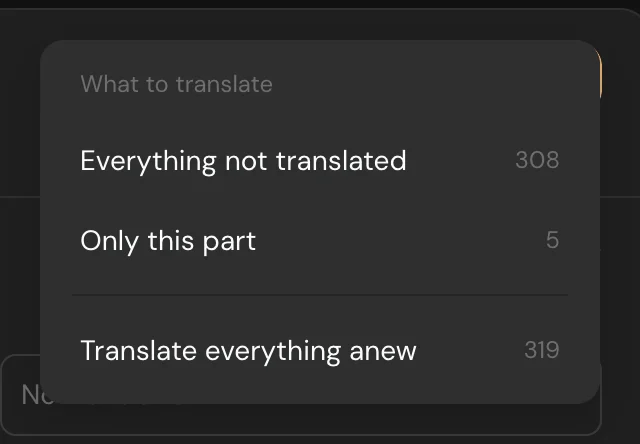
The number next to each option is how many texts it will translate. Texts you type while AI is working stay as you typed them. Variables such as {{n}} and answers inserted into questions are kept in the translation.
AI translation doesn't use the monthly AI requests of your plan. It has its own daily limit, see Limits.
Survey page and HTML code
The Survey page part holds texts respondents see outside the questions:
- Tab title: the title of the browser tab and of link previews. The original is the Post Title of the link preview, or the survey name.
- Description for social networks: the description in link previews.
- «Survey closed» title and «Survey closed» text: your own message on the page of a closed survey, if you turned on Your message on the private survey page in Settings.
An HTML Code block has an optional Code field. If you leave it empty, respondents in this language get the original code. AI doesn't translate code.
Buttons and messages
The Standard labels part holds the texts SurveyNinja adds to every survey: Next and Submit buttons, error messages, sign-in forms.
- For English, Español and Português these texts are ready. You only translate the labels you replaced in Standard labels in Settings.
- For any other language, translate all of them here, by hand or with AI. Until they're translated, the language can't be shown.
Labels are kept for each language separately. To change the labels of the main language, use Standard labels in Settings, see Survey Language and Standard Labels.
Showing a language to respondents
- Translate all texts of the language. The panel says Everything is translated.
- Click Show in the language row, or Show to respondents in the translation panel. The status changes to Shown.
- Click Publish.
The first time, a language can be shown only when everything is translated. If texts are left, Show opens the first untranslated part and says how many texts remain.
After that, you can hide the language with Hide and show it again even with texts left. Texts that aren't translated, for example a question you added later, are shown to respondents in the main language.
New and changed translations, Show and Hide reach respondents after you click Publish. To check a language before showing it, open Preview: it offers all added languages, hidden ones too.
Choosing how respondents pick the language
Under the list of languages, choose How respondents pick the language:
| Option | What respondents see |
|---|---|
| Language screen first (default) | A screen with the list of languages before the survey. The respondent's language is already marked. After the choice, the first screen has a language switch in the top right corner to fix a mistake |
| Buttons on the first screen | Language buttons above the title of the first screen |
| In the corner of every screen | A language switch in the top right corner of each screen. Answers stay when the respondent switches the language in the middle of the survey |
| No choice | No switch. The survey opens in the language of the link or the browser |
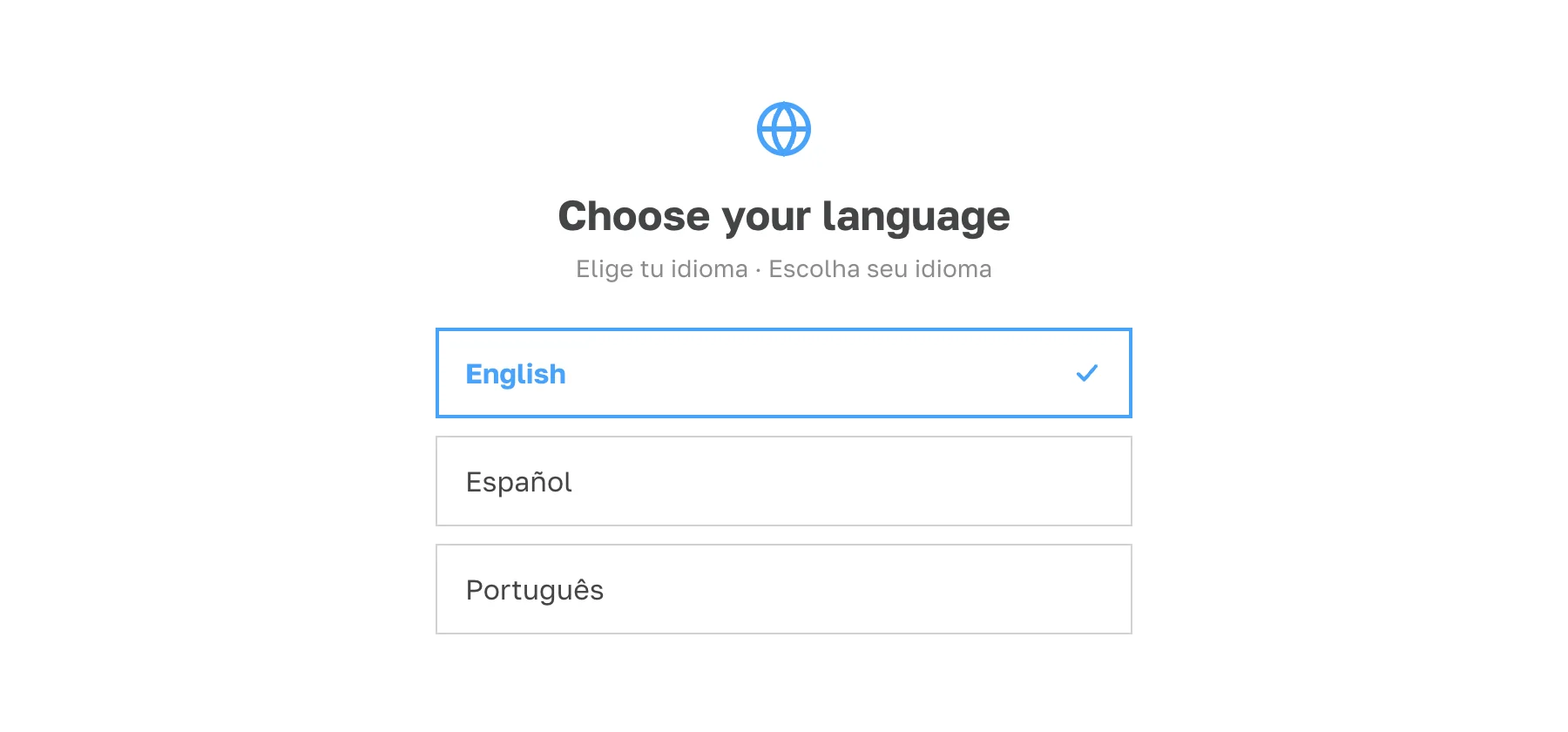
When a link names the language, the language screen isn't shown.
Which language the survey opens in
SurveyNinja chooses among the shown languages in this order:
- The language in the link, for example ?lang=es.
- The language the respondent chose earlier in this survey, in the same browser.
- The browser languages.
- The main language.
Sharing a link in one language
In the language row, click the three dots (Language actions) and select the copy link option, for example Copy the Deutsch link. The option appears for shown languages of a published survey.
The link is the survey link with ?lang= and the language code at the end, for example:
https://your-account.surveyninja.io/a1b2c3d4?lang=de
If the language in the link is hidden or not in the survey, the survey opens as usual. The lang parameter is also saved with the response, like any other hidden variable.
Responses in different languages
Each response remembers the language it was filled in.
- In Responses, the table has a Language column, and the response card shows the language.
- In Filter, the Language section selects responses by language. Responses without a language are listed as Not set.
- The CSV and XLSX downloads have a Language column with the language name.
Questions, options and the report stay in the main language, so all responses are counted together.
Removing a language
- Click the three dots in the language row and select Remove language.
- Click Remove language to confirm.
The translation is deleted. Responses collected in this language stay in the survey, with their language. For respondents, the language disappears after you click Publish.
Copies, templates and plan changes
- A copy of the survey, a template saved from it and a survey created from that template keep the languages, translations and standard labels of every language.
- If your plan no longer includes survey languages, published languages keep working and responses keep their language. You can hide or remove languages, but you can't add a language, show a hidden one, translate with AI or change the standard labels of extra languages.
Limits
- Up to 10 languages besides the main one, from a list of 43 languages. Right-to-left languages, such as Arabic and Hebrew, aren't available.
- The main language is English, Español or Português.
- Ready-made buttons and messages exist for English, Español and Português. Other languages need them translated in Standard labels.
- Translate with AI: up to 2,000,000 characters a day per workspace, and up to 20 requests a minute per user. It doesn't use the monthly AI requests of your plan.
- The language switch isn't shown on the Thank You Screen and in micro surveys. A micro survey opens in a language chosen in the order above.
- The Language filter and column are in Responses and in CSV and XLSX downloads only. Summary, Report, shared results, DOC and SPSS downloads and Google Sheets don't show the language.
If something doesn't work
Show doesn't show the language. Some texts aren't translated yet, often in Standard labels. The message says how many are left, and the parts with a dot need work.
Respondents don't see a new language, or the ?lang= link opens the main language. The language is hidden, or the survey wasn't published after the change. Check the status in the language row and click Publish.
AI says "Today's translation limit is used up. Continue tomorrow". The workspace reached the daily AI translation limit. Translate the rest by hand, or continue the next day.
AI says "Too many requests. Wait a minute and retry". Wait a minute and run Translate with AI again. What's already translated stays.