 Google Forms Limits: Responses, File Uploads, Timers and Logic, With Workarounds

Audio and Video Response Questions
Updated
On this page
An Audio response or Video response question lets respondents answer by voice or on camera instead of typing, for example "Tell us in your own words what you liked about the course". Respondents can also upload a recorded file or answer in text, if you allow it. In the results, you get the recording and, with transcription on, its text.
Paid feature. Available on the Premium plan and higher, and during the trial. Compare plans
Adding an audio or video question
- In Builder, click + and choose Audio response or Video response in the Open-ended section. More about adding questions: Question Types.
- Type the question.
- Click the gear icon (Settings) to set up the recording.
In Builder, the question shows what the respondent will see before recording. The builder never asks for your camera or microphone. To try recording, open the survey preview.
Settings
| Setting | What it does |
|---|---|
| Maximum duration | The longest recording, from 10 to 300 seconds. 120 by default. Recording stops by itself at this time, and a longer uploaded file isn't accepted. |
| Allow file upload | The respondent can upload a recorded file instead of recording in the browser. On by default. |
| Allow text answer | The respondent can type the answer instead. It helps when recording doesn't work on their device. On by default. |
| Transcribe responses | The text of each recording appears in the results after the response is submitted. It uses transcription minutes. On by default. Under the switch, you see how many minutes are left and, if you can pay for the workspace, Buy more minutes. |
| Transcription language | The language of the recordings. A new question has English. Transcription works for answers in English. |
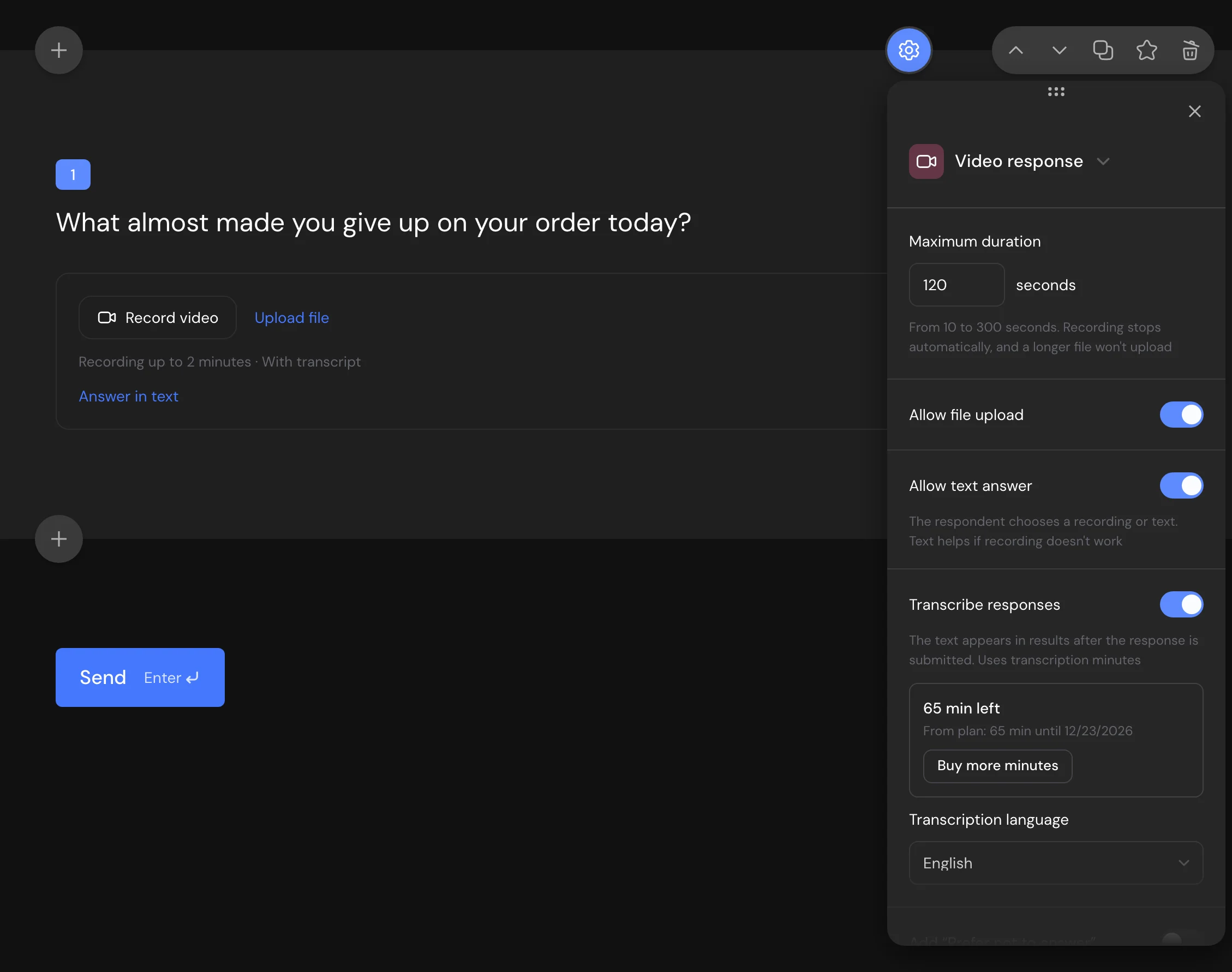
With Allow file upload and Allow text answer both off, respondents can answer only with a recording, so they need a microphone (and a camera for video) and a browser that supports recording.
Switching between Audio response and Video response keeps these settings. Common settings such as Required response, Add “Prefer not to answer” and Minimum view time are described in Question Settings.
What respondents see
- The question shows Record audio or Record video, the maximum length, for example "You can record up to 2 minutes", and the other ways you allowed: Upload file and Answer in text.
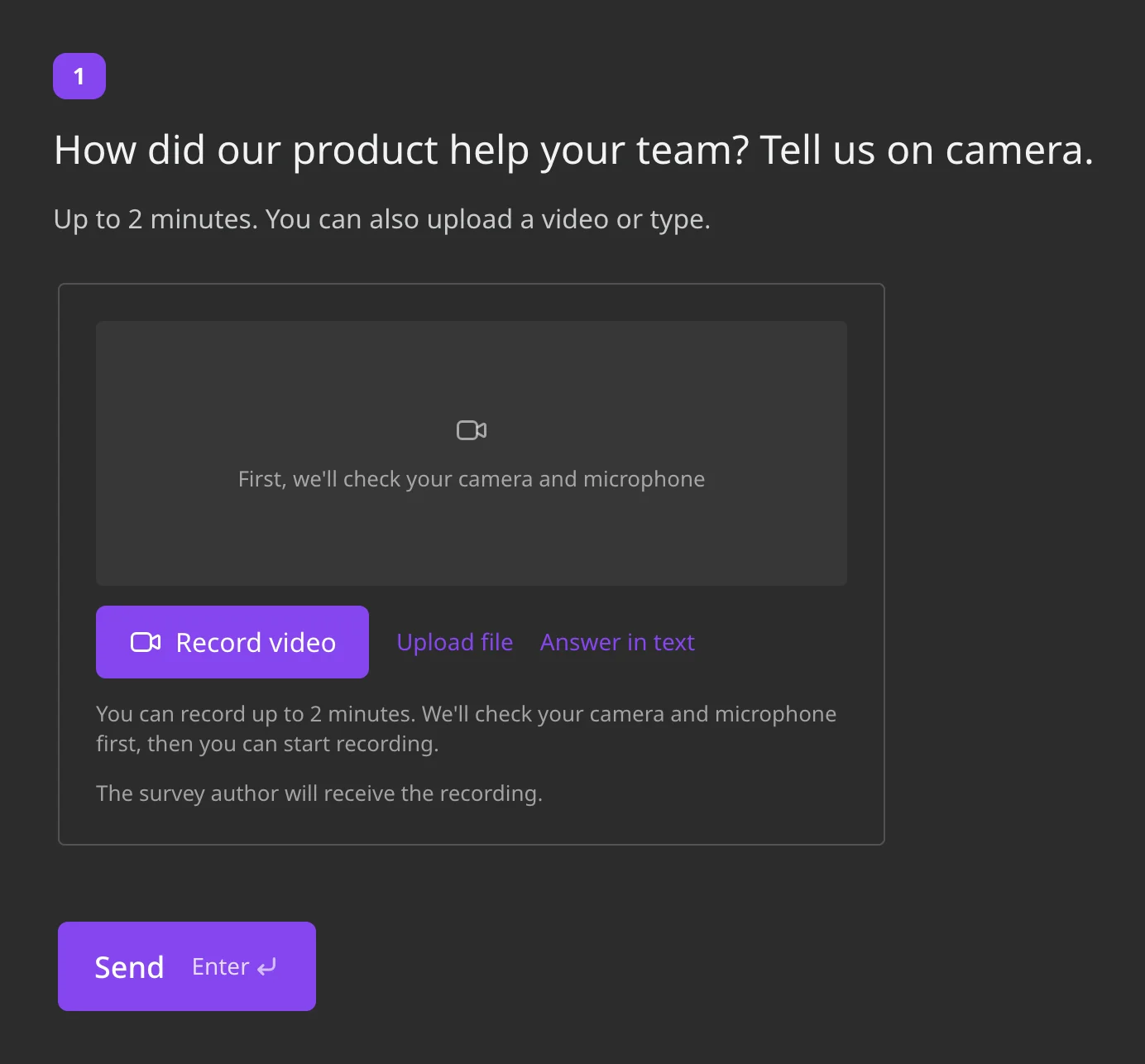
- After Record audio or Record video, the browser asks for the microphone (and the camera). The respondent checks the sound level or the frame, then clicks Start recording.
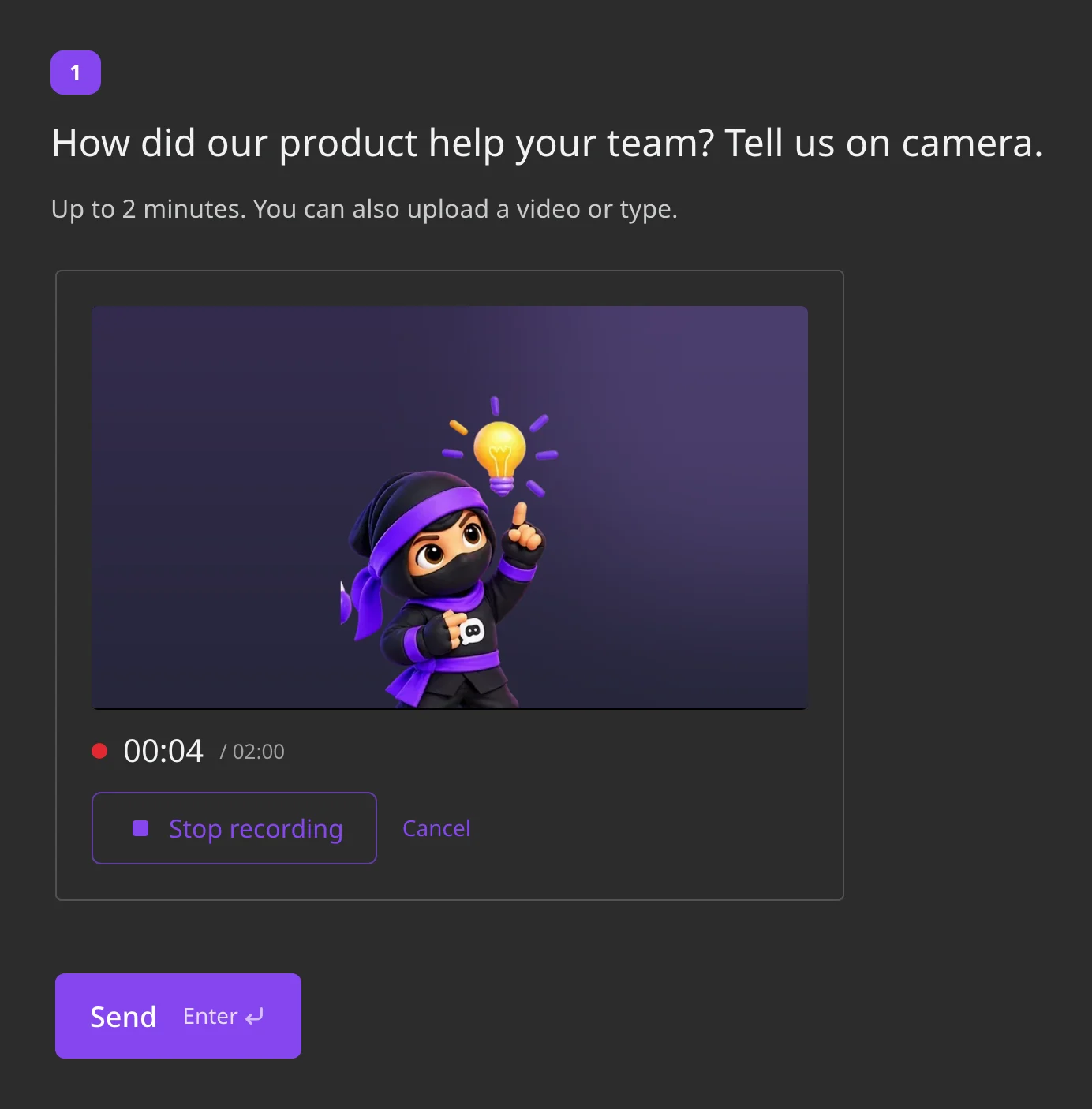
- While recording, the question shows the elapsed time and the maximum, for example "00:04 / 02:00". Stop recording ends the take, and Cancel discards it. Recording also stops by itself at the maximum duration.
- The respondent listens to or watches the take, then clicks Use this recording, Re-record or Delete this take, or switches to Answer in text, if you allowed it.
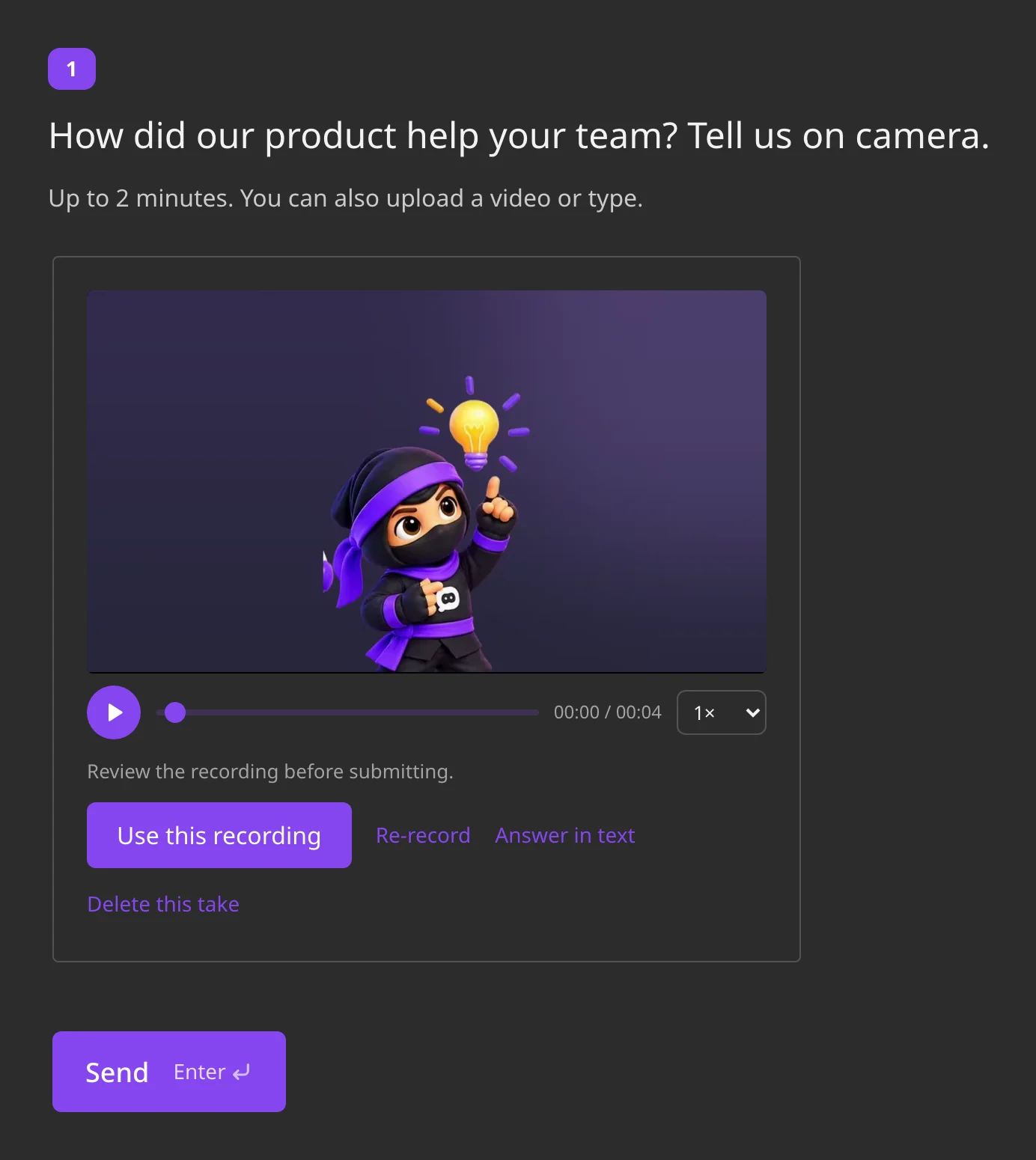
- The recording uploads. When it's saved, the question shows "Recording saved" with its length, and Replace recording to record again.
A text answer can be up to 6,000 characters. If the browser has no access to the microphone or camera, the respondent sees why and can try again, upload a file or answer in text, if you allowed them.
Responses and transcription
Recordings, text answers and transcripts are in Results. A transcript is usually ready a few minutes after the response is submitted. See Audio and Video Responses in Results.
Note. Automatic transcription works for answers in English. Recordings in other languages are still saved, and you can play and download them, but they don't get a reliable transcript. Themes and search by transcript depend on the transcript too.
Transcription takes minutes from your plan: 100 minutes a month on Premium and Enterprise and 20 minutes for the whole trial. When they run out, you can buy a pack of minutes. Recordings are saved even when there are no minutes left. Minutes and packs are described in Audio and Video Responses in Results.
Audio and video questions in logic
In logic jumps and display conditions, choose the audio or video question and one of the conditions:
- Equals → Answered with a recording: the respondent recorded or uploaded a file.
- Equals → Answered with text: the respondent typed the answer instead.
- Is answered: any answer, a recording or text.
For example, send respondents who answered in text to an extra question about why they didn't record. Conditions check how the respondent answered, not the words: the transcript is made after the survey is submitted, so it can't be used in logic.
Adding the survey to a website
On a website, the survey runs in a frame, and the frame gets the microphone and camera only if you allow it:
- Go to Share → On website and choose the way to add the survey.
- Turn on Allow recording answers. The option appears when the survey has audio or video questions.
- Copy the code and add it to your site. If the survey's code is already on the site, replace it with the new one.
The site must open over HTTPS. Without this option, the survey still works, but respondents on your site can't record. They see "Recording isn't available on this site. Open the survey via the direct link." and can upload a file or answer in text, if you allowed them. See Publishing a Survey.
Limits
- Audio and video questions need the Premium plan or higher, or the trial. If the plan no longer includes them, you can't add new ones or publish a survey that has them. Recordings already received stay in the results.
- Transcription: answers in English.
- Recording length: 10 to 300 seconds. An uploaded file can be up to 25 MB for audio and 150 MB for video, and not larger than the file size your plan allows.
- Timer, Show by button and Lock answer editing aren't available for these questions or for a Question Group that holds one. Minimum view time works.
- The answer can't be inserted into later questions or into emails.
- Micro surveys on a website don't offer audio and video questions.